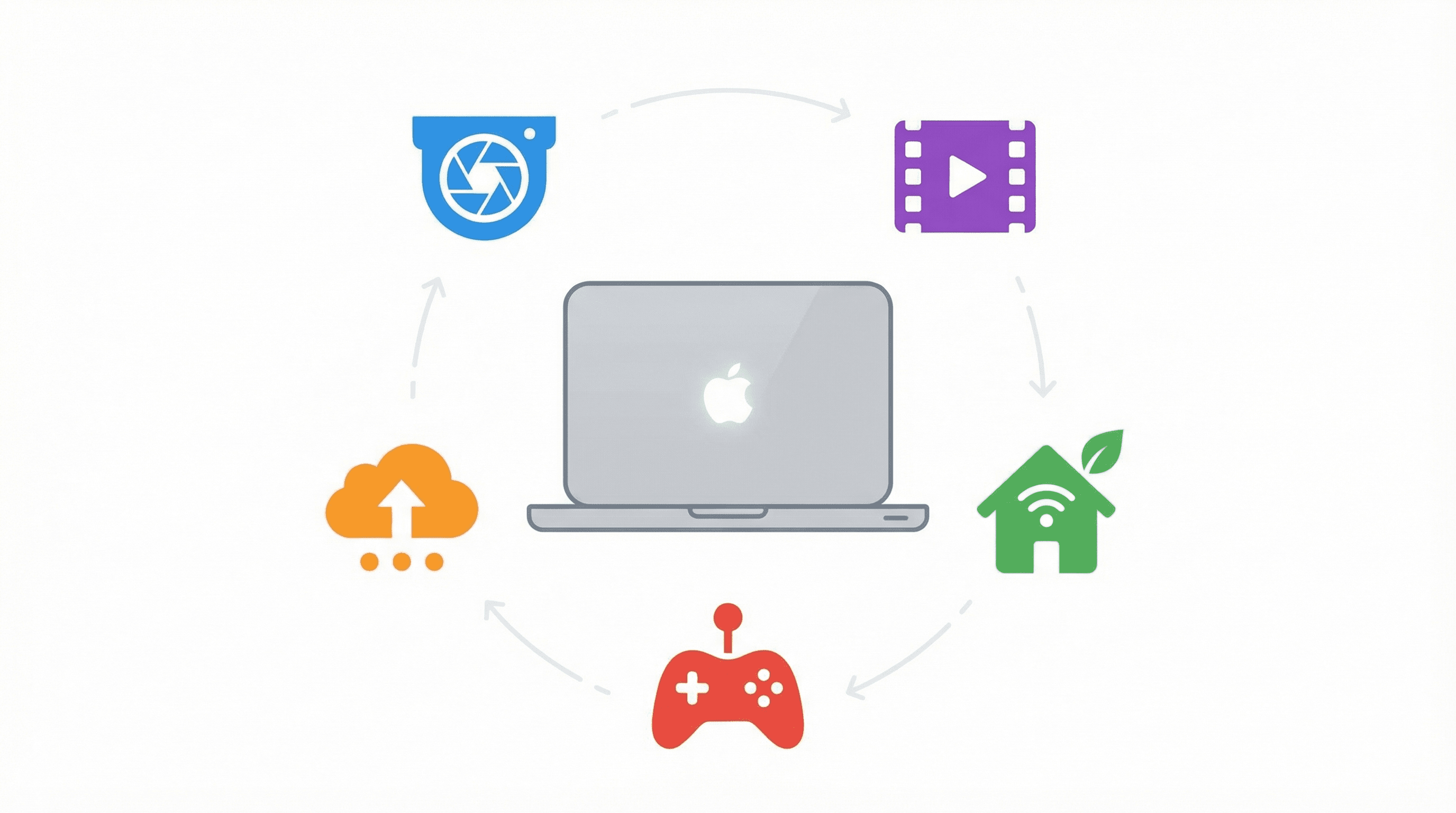
That old Mac sitting in a drawer? It's still a capable machine. Whether it's a 2012 MacBook Pro or a dusty Mac mini, there are practical projects that can put it back to work around your home.
Here are five things you can actually do with an old Mac - each one takes less than an hour to set up.
Q:What can you do with an old Mac?
A: Turn it into a home security camera (SpyCam), media server (Plex), smart home hub (Apple Home), personal cloud (Resilio Sync), or retro gaming console (OpenEmu). All low-cost projects that take minutes to set up.
- 1.Security camera with SpyCam - auto-arms when you lock the screen
- 2.Media server with Plex - stream your library to any device
- 3.Smart home hub with Apple Home - control lights, locks, thermostats
- 4.Personal cloud with Resilio Sync - ditch cloud storage subscriptions
- 5.Retro gaming with OpenEmu - play classic NES, SNES, PS1 games
1. Turn it into a home security camera
This is the best use for an old Mac - and the one most people overlook. Every Mac has a built-in camera (or you can plug in a USB webcam), and with the right software, it becomes a motion-activated security camera that records while you're away.
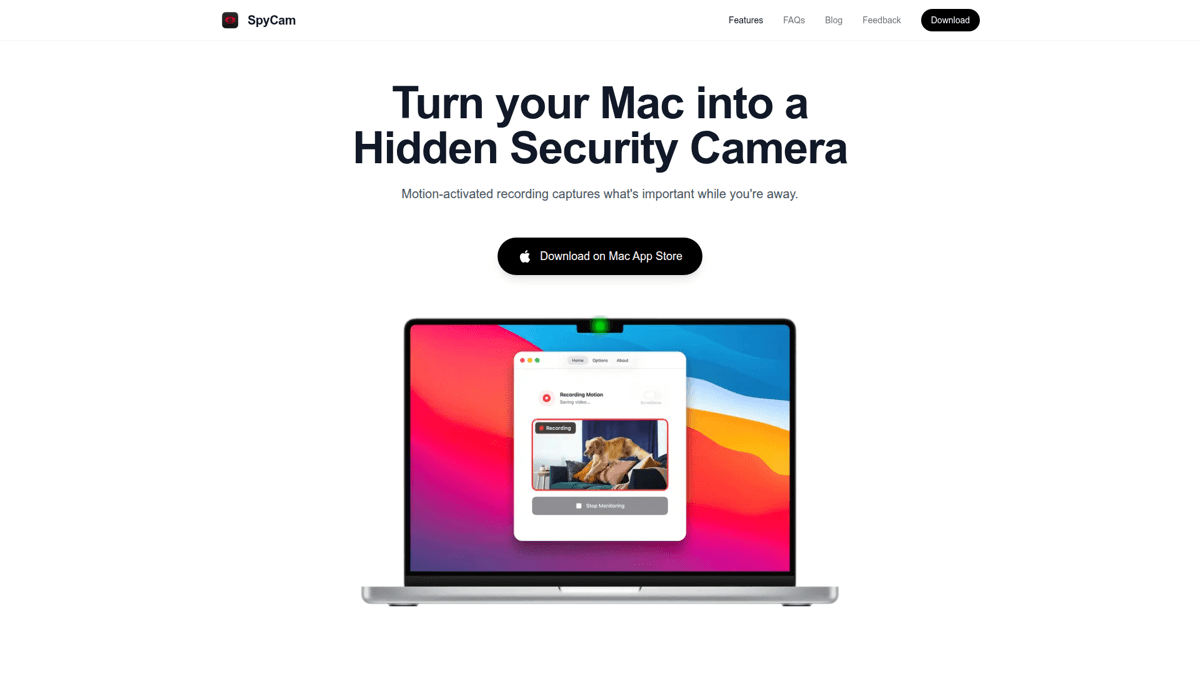
SpyCam is a macOS-native app that does exactly this. It turns your Mac's webcam into a motion-detecting security camera with one killer feature that no competitor has: Surveillance Mode.
Why Surveillance Mode changes everything
Here's the problem with most webcam security apps: you have to remember to start recording before you leave. Surveillance Mode solves this completely. When enabled, SpyCam automatically arms itself the moment you lock your screen or close your MacBook lid. It starts watching for motion immediately - no manual action needed.
When you come back and unlock your Mac, it stops. This automatic on/off cycle means your old Mac is always watching when you're gone and never recording when you're home. It even works during sleep mode - the camera stays active while the display is off, keeping power consumption low.
This makes an old Mac mini the perfect always-on security camera. Tuck it on a shelf, point a USB webcam at your front door, and enable Surveillance Mode. Every time you leave the house and lock the screen, it starts monitoring. Every time you return, it stops. Zero effort after initial setup.

Storage that just works
SpyCam saves recordings to your Mac's Photos app in a dedicated "SP Cam" album. If you have iCloud Photos enabled, those recordings automatically sync to your iPhone and iPad. You can check footage from anywhere without any extra apps or subscriptions.
Prefer to keep things local? SpyCam also supports saving to any folder on your Mac - an external drive, a NAS mount, whatever you want. No cloud required. All processing happens on-device, and there's no account to create. Your footage stays on your hardware.
How to set up SpyCam
Install SpyCam from the Mac App Store
Download and install SpyCam. Grant camera permissions when prompted.
Position your Mac or external webcam
Point the camera at the area you want to monitor - a door, window, or room entrance works best.
Enable Surveillance Mode
Toggle Surveillance Mode in the app settings. SpyCam will now auto-arm whenever you lock your screen.
Adjust motion sensitivity
Set the sensitivity from 0 (slight movement) to 4 (major motion only). Start at 2 and adjust based on false triggers.
Enable Launch at Login
Turn on Launch at Login in SpyCam settings so it starts automatically every time your Mac boots up. Now it runs 24/7.
Full setup takes about 5 minutes
SpyCam also lets you customize the menu bar icon to something inconspicuous - a coffee cup, a leaf, a turtle. There are over 30 options. If you want discreet monitoring, nobody will know the app is running.
Our Verdict
🎥SpyCam
The best way to repurpose an old Mac as a security camera. Surveillance Mode is genuinely unique.
Best for: Anyone with a spare Mac who wants set-it-and-forget-it home monitoring
Strengths
- +Surveillance Mode auto-arms on lock screen - no competitor has this
- +iCloud Photos sync lets you check footage from iPhone
- +Completely private - no cloud servers, no account needed
- +Works during Mac sleep mode
Weaknesses
- −No live streaming or remote viewing
- −One camera at a time
- −No AI detection (person, pet, package)
On repurposing a 2010 MacBook Pro with 16GB RAM and SSD
“I don't want to just throw it away and would love to figure out something to use it for around my house.”View on Reddit
App Store Reviewer
Very impressive and under-rated
“Very impressive and under-rated. One purchase and integrity of interface over devices. iPhones are smaller and we have more of them in a house than Macs!”
Want a deeper walkthrough? Check out our full guide on how to turn your Mac into a security camera.
2. Turn it into a media server
An old Mac makes an excellent media server. Install Plex, point it at your movie and music collection, and stream everything to your TV, phone, or tablet. The free tier handles most use cases.

A Mac mini is ideal for this because it's small, quiet, and sips power. Even a 2012 model can transcode standard-definition video and direct-play most HD content. Plug in an external drive with your media library, and you've got a home Netflix that costs nothing to run.
Plex automatically fetches metadata, artwork, and subtitles for your content. It organizes everything into a clean interface that looks professional on any screen. You can even share your library with family members who have their own Plex accounts.
Download Plex Media Server
Grab the free macOS installer from plex.tv/media-server-downloads.
Add your media library
Point Plex at folders containing your movies, TV shows, or music. It scans and organizes everything automatically.
Install Plex on your devices
Download the Plex app on your smart TV, phone, or tablet. Sign in and your library appears instantly.
Enable remote access (optional)
Toggle remote access in Plex settings to stream your library from anywhere - not just at home.
Setup takes about 10 minutes plus media scanning time
Best Mac for a Plex server?
A Mac mini is perfect - low power draw, small footprint, and enough horsepower for multiple streams. Even a 2014 Mac mini handles 2-3 simultaneous 1080p streams without breaking a sweat.
3. Make it a smart home hub
Every Mac running macOS Ventura or later has the Apple Home app built in. If you have HomeKit-compatible smart devices - lights, locks, thermostats, sensors - an always-on Mac can serve as your home hub.
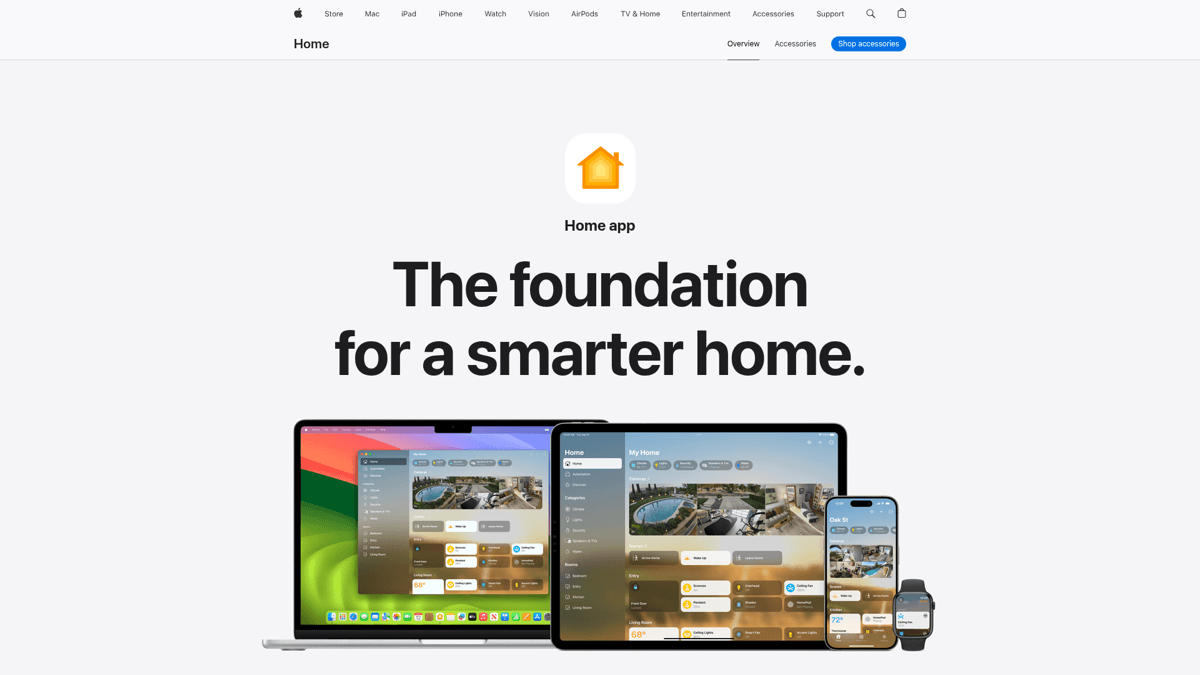
With a Mac as your home hub, you get remote access to your HomeKit devices from anywhere. You can also set up automations - like turning on lights at sunset or locking the door when everyone leaves. The Mac needs to stay powered on and signed into the same iCloud account as your other Apple devices.
This works especially well with a Mac mini tucked away in a closet or behind a TV. It consumes very little power and gives you the same home hub functionality as a HomePod or Apple TV - without buying additional hardware.
Pair this with SpyCam on the same machine, and you've got a security camera and smart home hub running on one old Mac. Two projects, one device.
4. Build a personal cloud storage server
Paying for iCloud, Google Drive, or Dropbox every month? An old Mac with a large external drive can replace all of that. Apps like Resilio Sync let you sync files between devices without any cloud service in the middle.
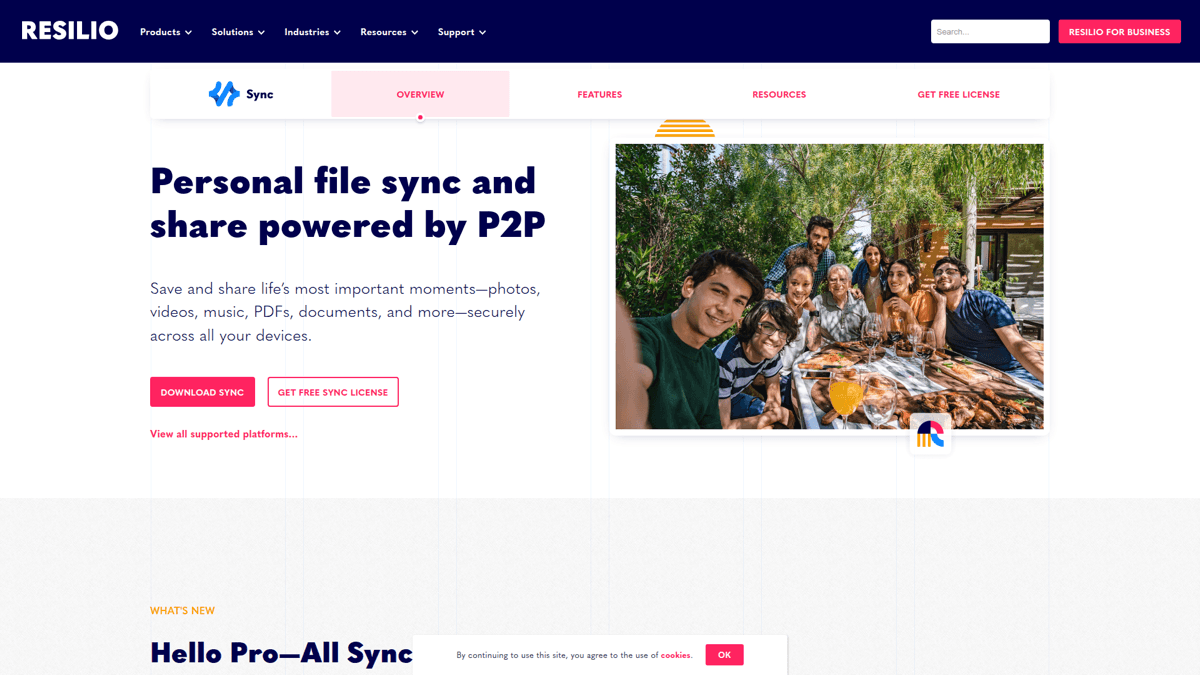
Your files transfer directly between your devices over your local network (or encrypted over the internet). No monthly fees, no storage limits beyond your hard drive, and complete privacy - your data never touches a third-party server.
Why go self-hosted?
2TB of iCloud costs $9.99/month - that's $120/year. A 2TB external drive costs $60 once. An old Mac with Resilio Sync pays for itself in six months and gives you unlimited storage after that.
5. Turn it into a retro gaming console
Old Macs that struggle with modern games absolutely crush retro emulation. OpenEmu is a beautiful macOS-native emulator that supports 30+ systems - NES, SNES, Game Boy, PlayStation 1, Sega Genesis, and more.
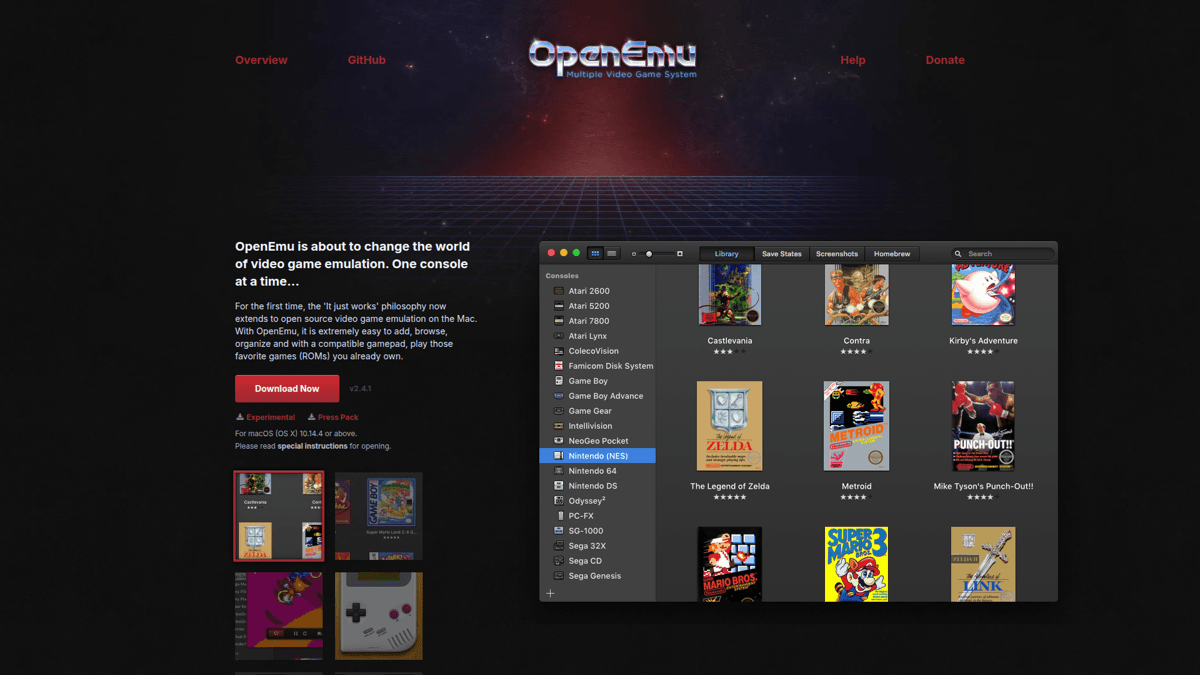
The interface is stunning - it organizes your ROM collection with cover art and metadata, just like iTunes did for music. Plug in a USB or Bluetooth controller (PS4 and Xbox controllers work natively on macOS), connect to a TV via HDMI, and you've got a dedicated retro gaming station.
Even a 2012 MacBook Air can run these emulators flawlessly. It's one of the most fun ways to give an old Mac a second life - especially if you have kids who've never experienced the classics.
Need mobile monitoring too?
SpyCam is perfect for stationary Mac-based monitoring. For iPhone and iPad security cameras, check out Homy - our privacy-first mobile app with the same iCloud-based approach.
Get Homy for iOSDon't toss it - put it to work
Your old Mac still has plenty of life left. Whether you turn it into a security camera with SpyCam, a Plex media server, a smart home hub, a personal cloud, or a retro gaming console - these are all practical projects that take minutes to set up and save you from buying new hardware.
The security camera project is the standout. It's the one use case where an old Mac genuinely does something that dedicated hardware does - but for a fraction of the cost. If you want to start there, check out our step-by-step guide to turning your Mac into a security camera.