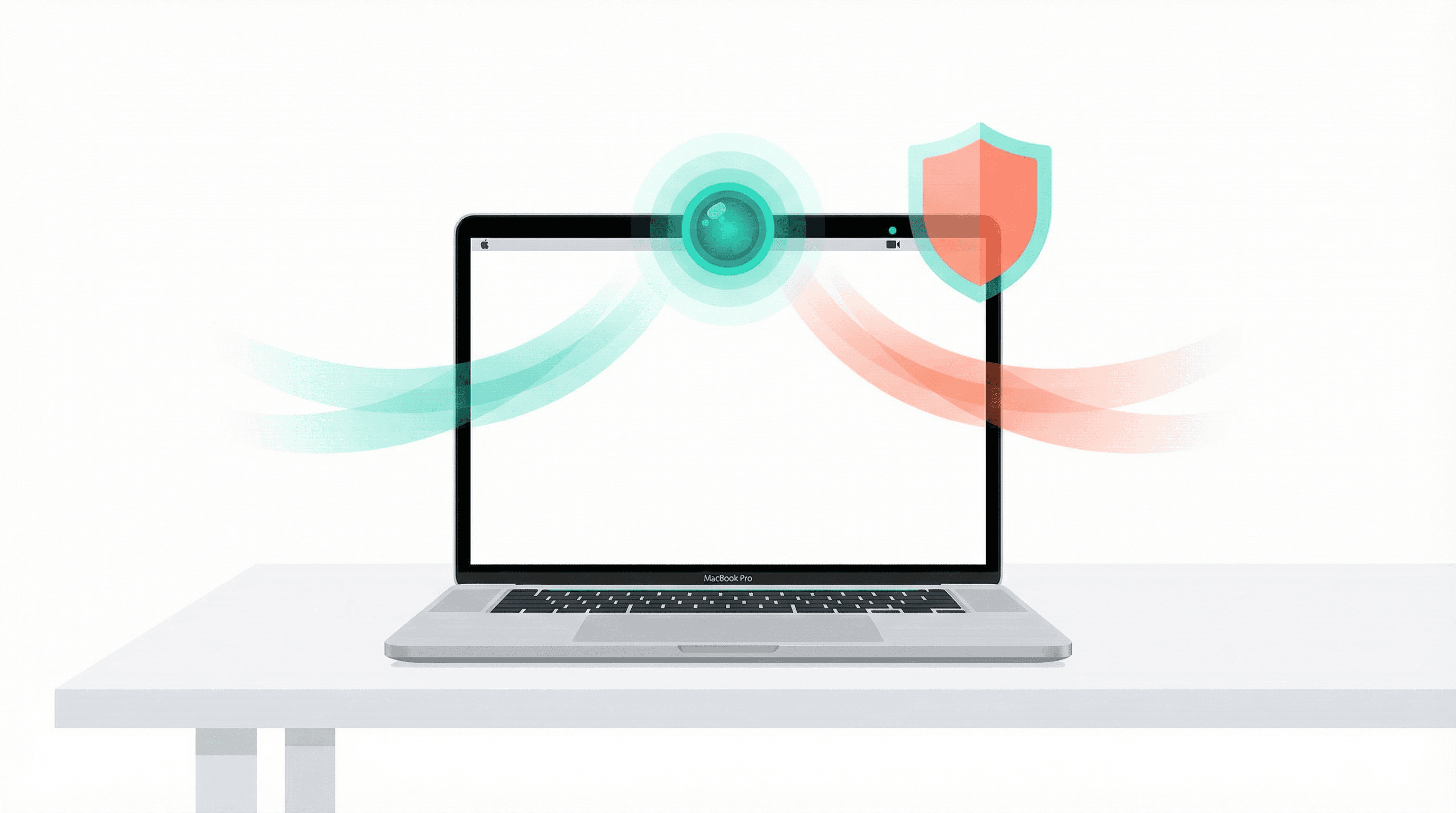
You already own a security camera - it is sitting on your desk right now. Every Mac ships with a built-in webcam, and with the right app it becomes a motion-activated surveillance system in about five minutes. No extra hardware, no monthly cloud fees, no data leaving your machine.
Q:How do I turn my Mac into a security camera?
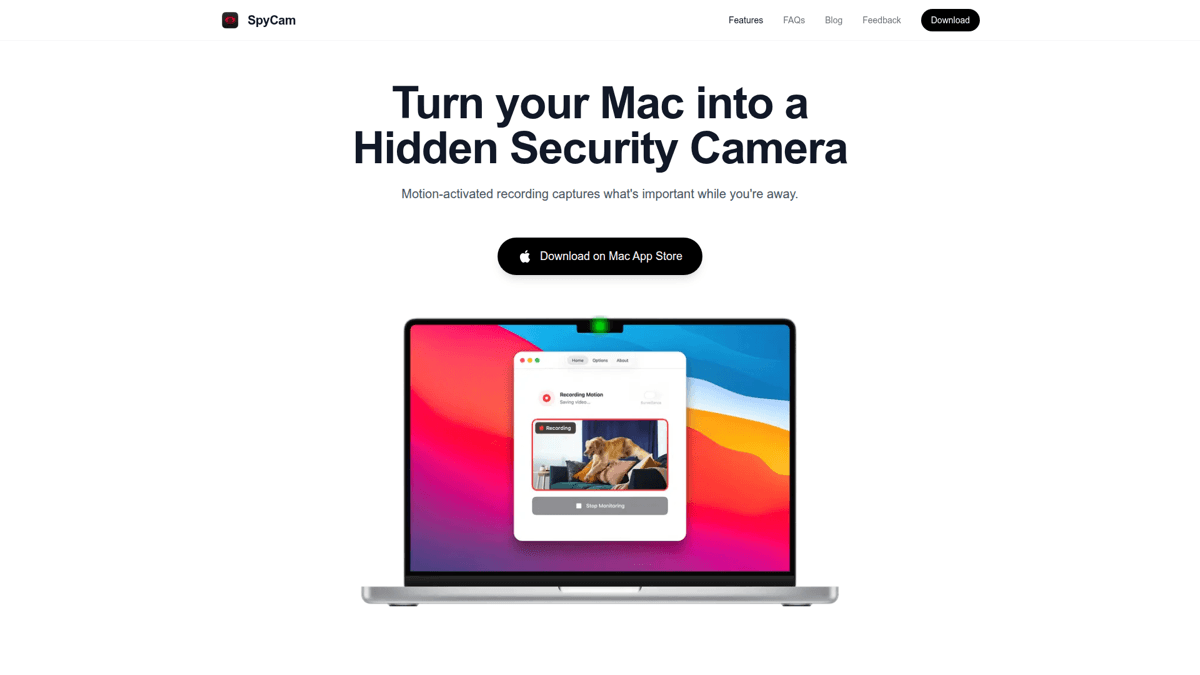
A: Download SpyCam from the Mac App Store ($2.99/month, $14.99/year, or $44.99 lifetime). It turns any Mac with a camera into a motion-detection security system. SpyCam's Surveillance Mode auto-arms when you lock the screen and saves clips to Photos for iCloud sync to your iPhone.
- 1.Works with built-in webcam, external USB cameras, or iPhone via Continuity Camera
- 2.Surveillance Mode arms automatically when you lock the screen
- 3.All footage stays local or syncs via your own iCloud - no third-party servers
- 4.macOS Ventura (13.0) or later required
What you need
The requirements are minimal. If your Mac was made in the last decade, you are probably good to go.
✅Quick checklist
A Mac running macOS Ventura (13.0) or later
MacBook, iMac, Mac mini, Mac Studio, or Mac Pro
A camera - built-in webcam, external USB, or iPhone via Continuity Camera
SpyCam app from the Mac App Store
$2.99/mo · $14.99/yr · $44.99 lifetime
5 minutes of your time
Set up SpyCam: step by step
SpyCam is a native Mac app built specifically for webcam-based surveillance. No account creation, no cloud dependency - just download and go.
Download SpyCam from the Mac App Store
Search "SP Cam" in the Mac App Store or use the direct link. No account creation needed - just download and open.
Choose your recording mode
Monitor Mode lets you start recording immediately with one click. Surveillance Mode arms itself automatically when you lock the screen and disarms when you return. For set-and-forget security, Surveillance Mode is the way to go.
Configure motion detection
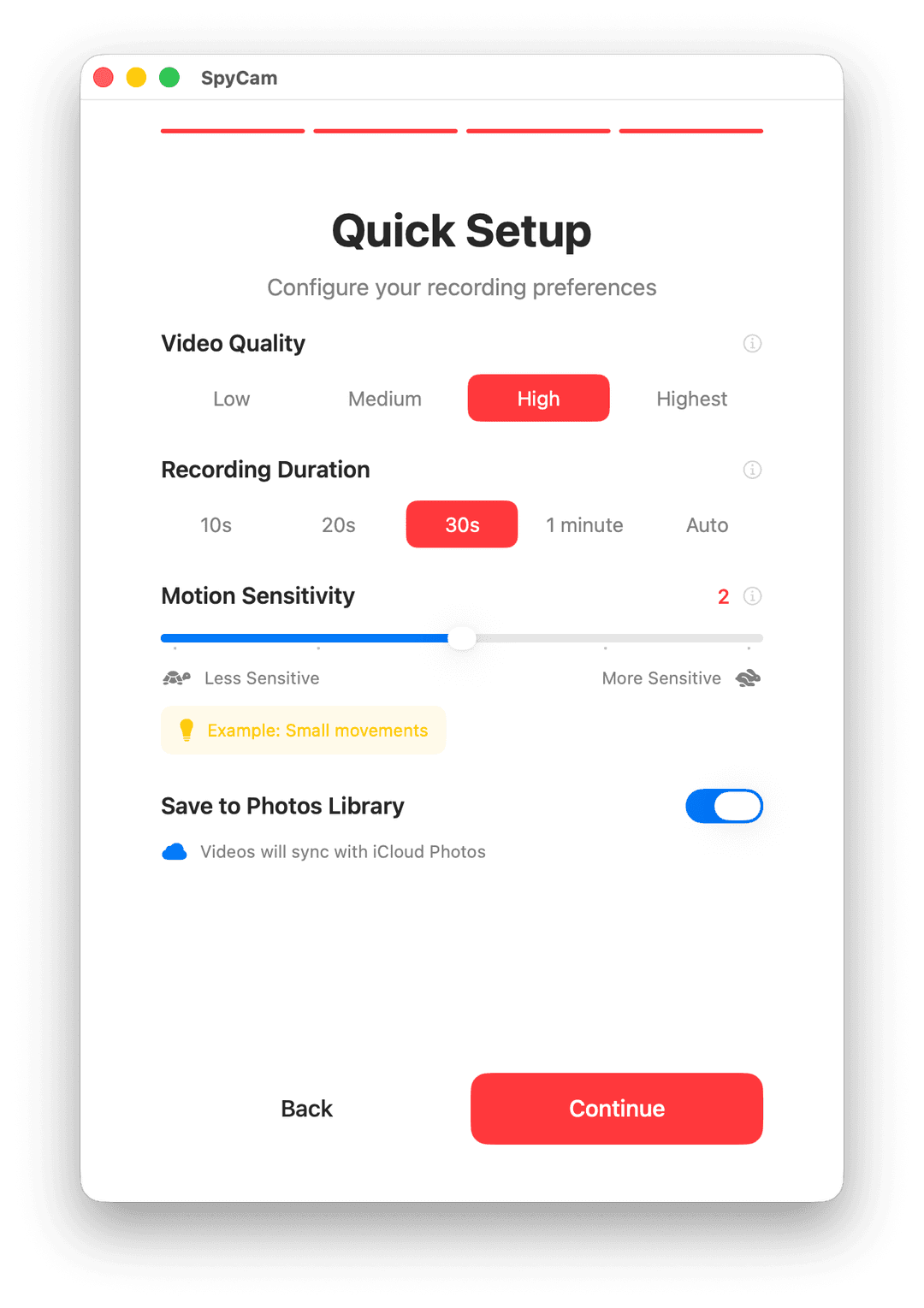
Adjust sensitivity on a 0-4 scale (from slight movement to major motion only). Set recording duration anywhere from 10 seconds to 5 minutes, or choose Auto to capture the full motion event. Configure cooldown between recordings to avoid overlapping clips.
Set up storage
Pick Photos app to save clips to a dedicated "SP Cam" album that syncs to your iPhone via iCloud Photos. Or choose any local folder - perfect for external drives or NAS workflows. Everything stays on your hardware.
Enable Launch at Login
Turn on Launch at Login in SpyCam settings so it starts automatically every time your Mac boots. Pick a discreet menu bar icon from 30+ options so it blends right in.
Surveillance Mode: the feature that sets SpyCam apart
Most webcam recording apps require you to manually hit record. SpyCam flips that on its head. Surveillance Mode arms itself the moment you lock your screen or your Mac goes to sleep - and disarms automatically when you return.
That means every time you step away from your desk, close the lid, or lock the screen with a hot corner, SpyCam silently watches for motion. When it detects movement, it records a clip and saves it to your chosen storage. No buttons to press, nothing to remember.
If your primary camera disconnects (say you unplug an external webcam), SpyCam automatically falls back to the next available camera. No interruption in coverage.
On why SpyCam was built
“I work from a shared studio and wanted proof if someone touched my Mac while I grabbed coffee. Existing webcam recorders either streamed to third-party clouds or drained the battery.”View on Reddit
Using your iPhone as the camera (Continuity Camera)
If your Mac is a mini, Studio, or Pro without a built-in webcam - or you just want a better camera angle - you can use your iPhone as the video source via Apple's Continuity Camera.
Both devices need to be signed into the same Apple ID and on the same Wi-Fi network. Once connected, your iPhone shows up as a camera source in SpyCam. Mount the iPhone where you want it pointed and you get a wireless security camera with a much better sensor than most Mac webcams.
⚠️ Continuity Camera limitation
Continuity Camera stops working when your Mac is locked. For lock-screen surveillance with Surveillance Mode, use SpyCam with the built-in or a USB camera instead. Continuity Camera works great with Monitor Mode while you are actively at the Mac.
Menu bar icons and stealth mode
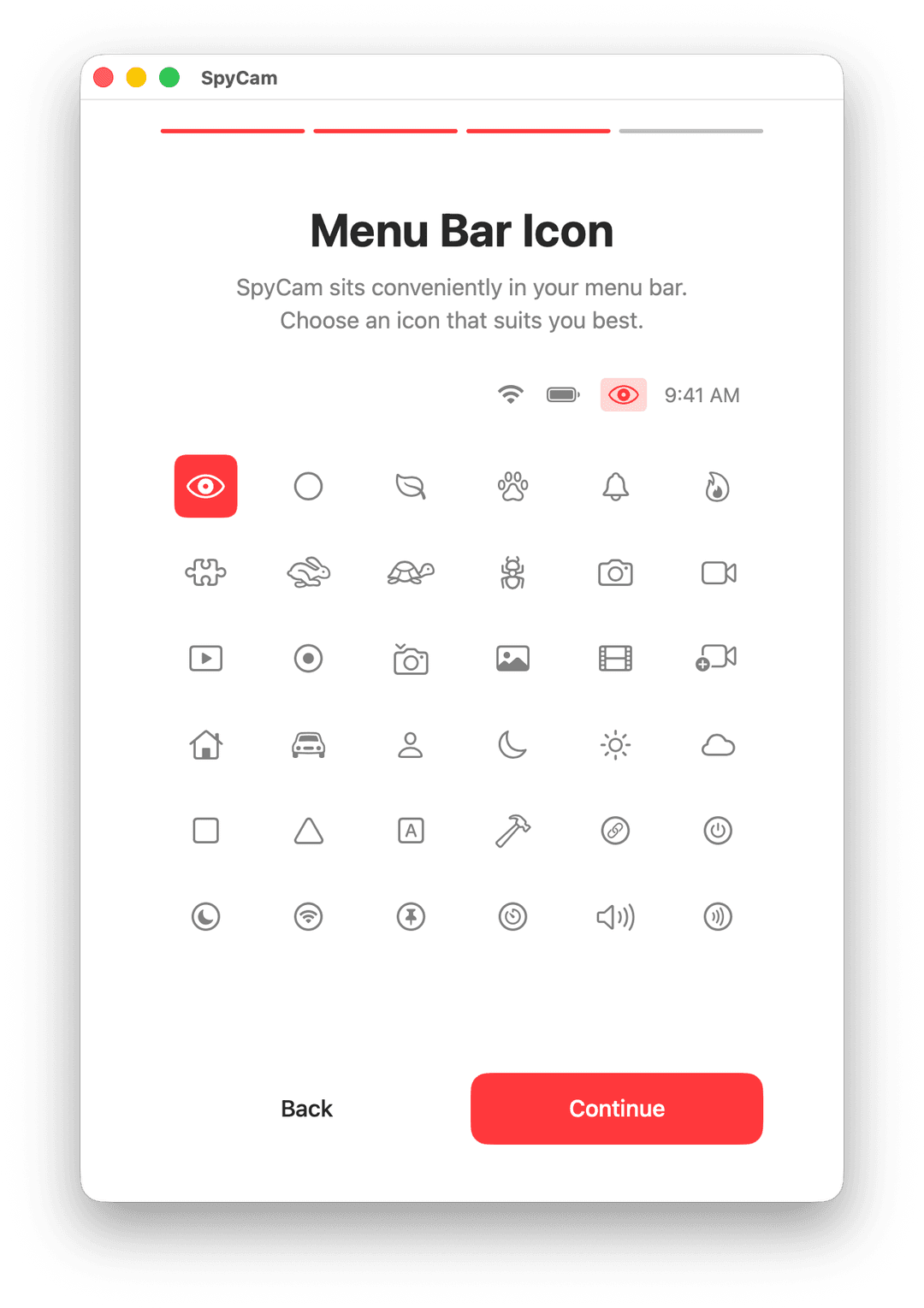
SpyCam lives in your menu bar by default - no Dock icon cluttering your workspace. But it goes a step further: you can choose from over 30 menu bar icons. Pick a turtle, a coffee cup, a leaf, or anything else that blends in with your other menu bar items.
Nobody looking at your screen will know a security camera is running. Combined with Surveillance Mode, SpyCam becomes a completely invisible security layer for your Mac.
Tips for the best results
- Camera placement matters. Position your Mac (or external camera) at eye level with a clear view of the area you want to monitor. Avoid pointing directly at windows to prevent backlight washout.
- Good lighting helps. SpyCam does not have night vision, so make sure the area has enough ambient light. A small desk lamp can make a big difference at night.
- Start with medium sensitivity. Set motion sensitivity to 2 out of 4 and adjust from there. Too high and you get false triggers from shadows. Too low and you miss actual events.
- Consider an external USB camera. For sharper footage, plug in a USB webcam that supports 1080p or 4K. SpyCam works with any USB camera your Mac recognizes.
- Use Photos app for instant iPhone access. When you save clips to Photos, they sync to your iPhone via iCloud automatically. Check what happened at home from anywhere.
- Use Auto recording duration. The Auto setting captures the entire motion event instead of cutting off at a fixed length. You will not miss the end of an important clip.
Our Verdict
🎯SpyCam
The best way to turn your Mac into a security camera. Surveillance Mode is a genuine differentiator that no competitor matches.
Best for: Anyone who wants set-and-forget Mac surveillance with zero cloud dependency
Strengths
- +Surveillance Mode auto-arms on lock screen - unique feature
- +Privacy-first: everything stays on your Mac or your own iCloud
- +30+ stealth menu bar icons for invisible operation
- +Camera fallback if primary disconnects
Weaknesses
- −No live streaming or remote viewing (iCloud Photos only)
- −No push notifications for motion events
- −No AI detection (person, pet, package)
Need mobile monitoring too?
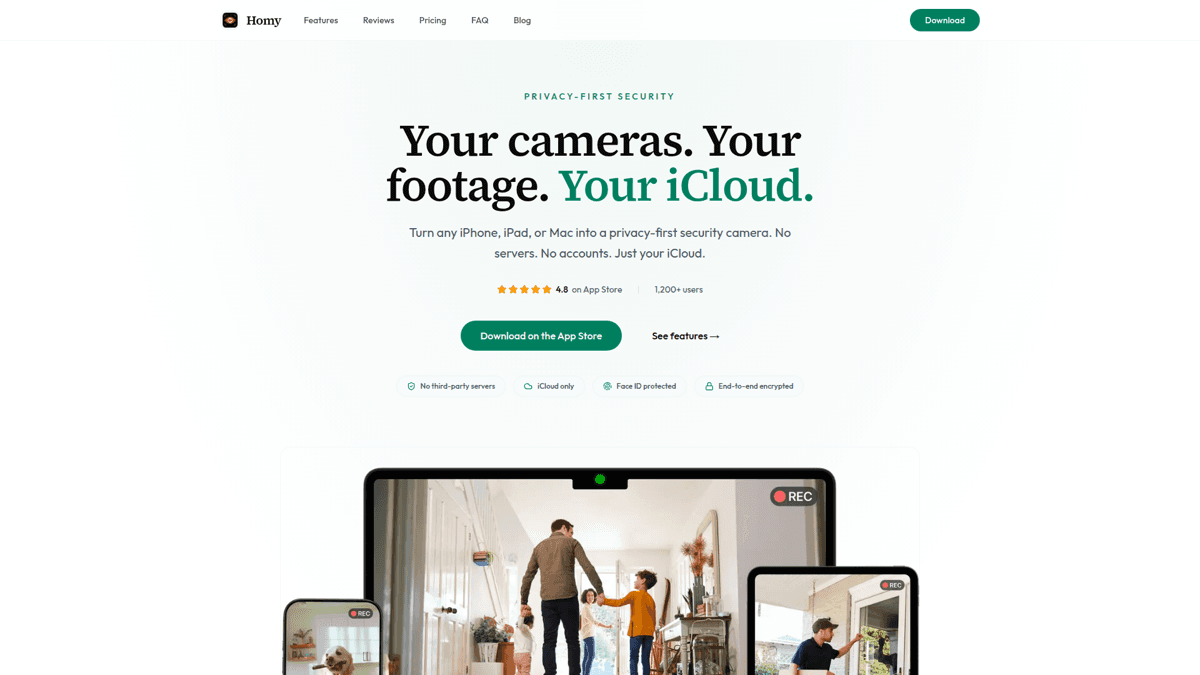
SpyCam is perfect for stationary Mac-based monitoring. For iPhone and iPad security cameras, check out Homy - same developer, same privacy-first approach, same iCloud-based storage.
Get Homy for iOSYour Mac is already a capable security camera - SpyCam just unlocks that potential. Five minutes of setup and you have motion-activated surveillance that runs silently in the background. Want to see how SpyCam stacks up against alternatives? Check out our roundup of the best Mac security camera apps. And if you have an old MacBook collecting dust, a security camera is just one of many things to do with an old Mac.